Use rulers
Rulers help you precisely position and size layers.
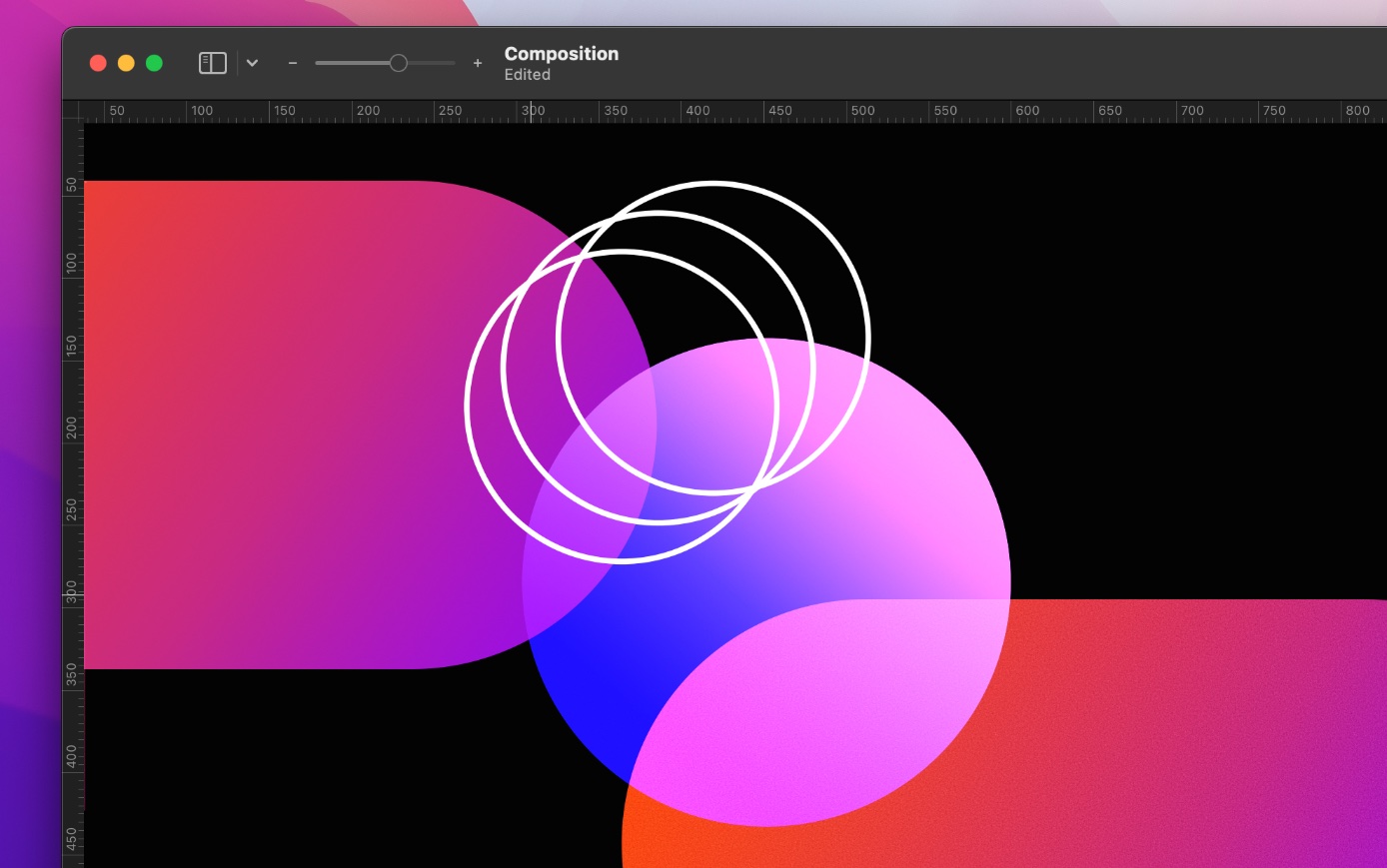
Show or hide rulers#
Do one of the following:
- Click the disclosure arrow next to the Show or hide Layers
 button in the Pixelmator Pro toolbar, then choose Show Rulers or Hide Rulers.
 - Choose View > Show Rulers or Hide Rulers from the View menu at the top of your screen.
- Press
Command ⌘+Ron your keyboard.
Change ruler units#
The rulers' settings apply to all Pixelmator Pro documents. You can change settings at any time, even if you’re editing an image.
- Choose Pixelmator Pro > Settings from the Pixelmator Pro menu at the top of your screen, then click the Rulers tab at the top of the settings window.
- Click the Ruler Units pop-up menu, then choose a unit (Percent, Pixels, Centimeters, Millimeters, or Inches).
Change the zero origin#
The zero origin is the location of the rulers’ 0. By default, units increase from 0 in the upper-left corner of the image, but you can also change the zero origin to any other location on both the vertical and horizontal ruler.
- Move the pointer to where the rulers meet in the upper-left corner of the canvas.
- Drag diagonally down onto the image to set a new zero origin.
To reset the zero origin, double-click the area where the horizontal and vertical rulers meet in the upper-left corner of the canvas.