Adjust individual colors in an image
Using the Selective Color adjustment, you can adjust the hue, saturation, and brightness of a precise color range in an image without affecting any other colors. The Selective Color adjustment features 8 individual color ranges — reds, oranges, yellows, greens, cyans, blues, violets, and magentas — divided according to the color spectrum. Above each color range, you’ll see a handy histogram that shows you just how much of that particular color is in your image.
The Selective Color adjustment can be applied directly to a single layer or, using a color adjustments layer, to multiple layers in a composition.
Edit the currently selected layer#
- Choose Format > Color Adjustments > Selective Color from the Format menu at the top of your screen.
- In the Tools sidebar, click Color Adjustments
 and turn on the Selective Color adjustment.
 - Press
Aon your keyboard and turn on the Selective Color adjustment.
Edit multiple layers in a composition#
- Choose Insert > Color Adjustments from the Insert menu at the top of your screen and turn on the Selective Color adjustment in the Tool Options pane.
- Click Insert a layer
 at the top of the Layers sidebar, choose Color Adjustments, and turn on the Selective Color adjustment.
 - Press
Shift ⇧+Command ⌘+Aon your keyboard, and turn on the Selective Color adjustment.
Make adjustments to precise colors in an image#
- Click to select one of the color ranges in the Selective Color adjustment.
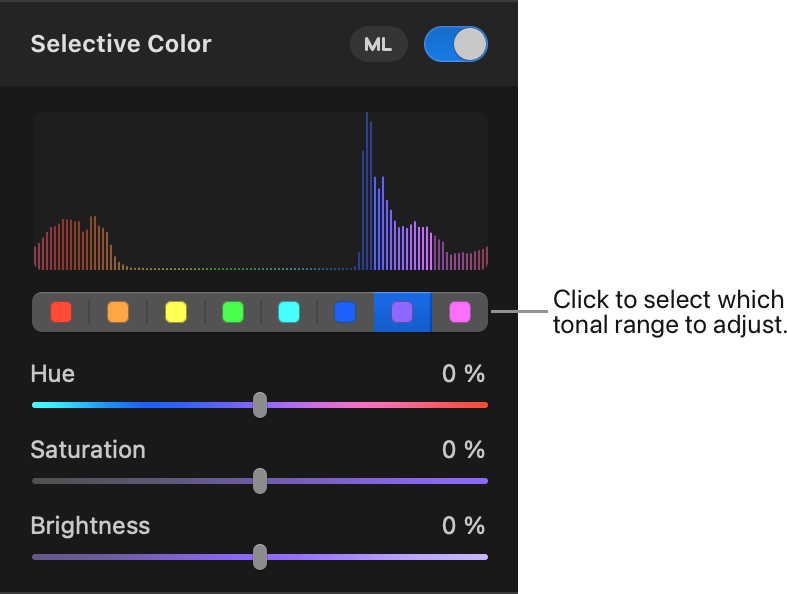
- Drag the sliders in the Selective Color adjustment to make adjustments to your selected color range.
- Hue: Drag the Hue slider to shift the hue of the colors in the selected color range towards a neighboring color range. Press and hold the
Option ⌥key before dragging if you’d like to extend the range of the Hue slider beyond 100%. You can also enter a percentage value from –400% to 400%. - Saturation: Drag the Saturation slider to the right to make the colors in the selected color range more intense, or to the left to make them less intense.
- Brightness: Drag the Brightness slider to the right to make the colors in the selected color range brighter, or to the left to make them darker. Press and hold the
Option ⌥key before dragging if you’d like to extend the range of the Brightness slider beyond 100%. You can also enter a percentage value from –200% to 200%.
- Hue: Drag the Hue slider to shift the hue of the colors in the selected color range towards a neighboring color range. Press and hold the
Automatically enhance individual colors in an image#
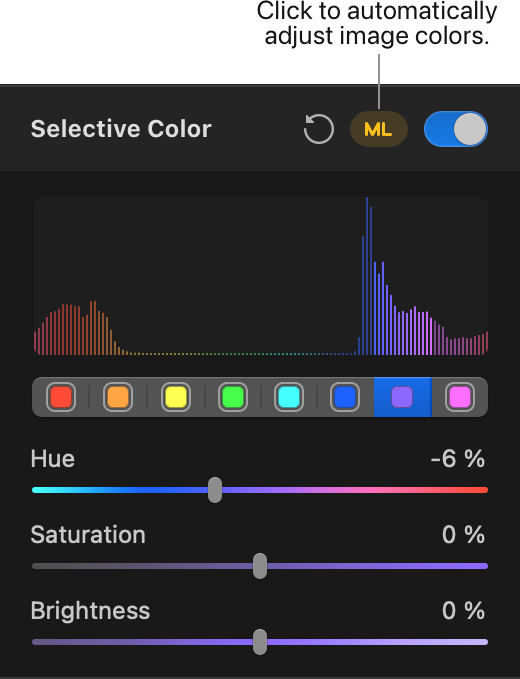
The ML adjustment improves individual color ranges in your image automatically using a machine learning algorithm trained on millions of professional images.
- Click ML next to the Selective Color adjustment to automatically improve image colors.
Show before and after or reset adjustments#
Show Original: Click the Show Original button or press Control ⌃ + M on your keyboard to see what the image looks like without any color adjustments.
Show Split Comparison: Option ⌥ – click the Show Original button, press Control ⌃ + C on your keyboard, or force-click the canvas.
To reset all Color Adjustments, click Reset at the bottom of the Color Adjustments pane.