Share and import brushes
You can share any of the brushes in your collection and import Pixelmator Pro brushes created by others.
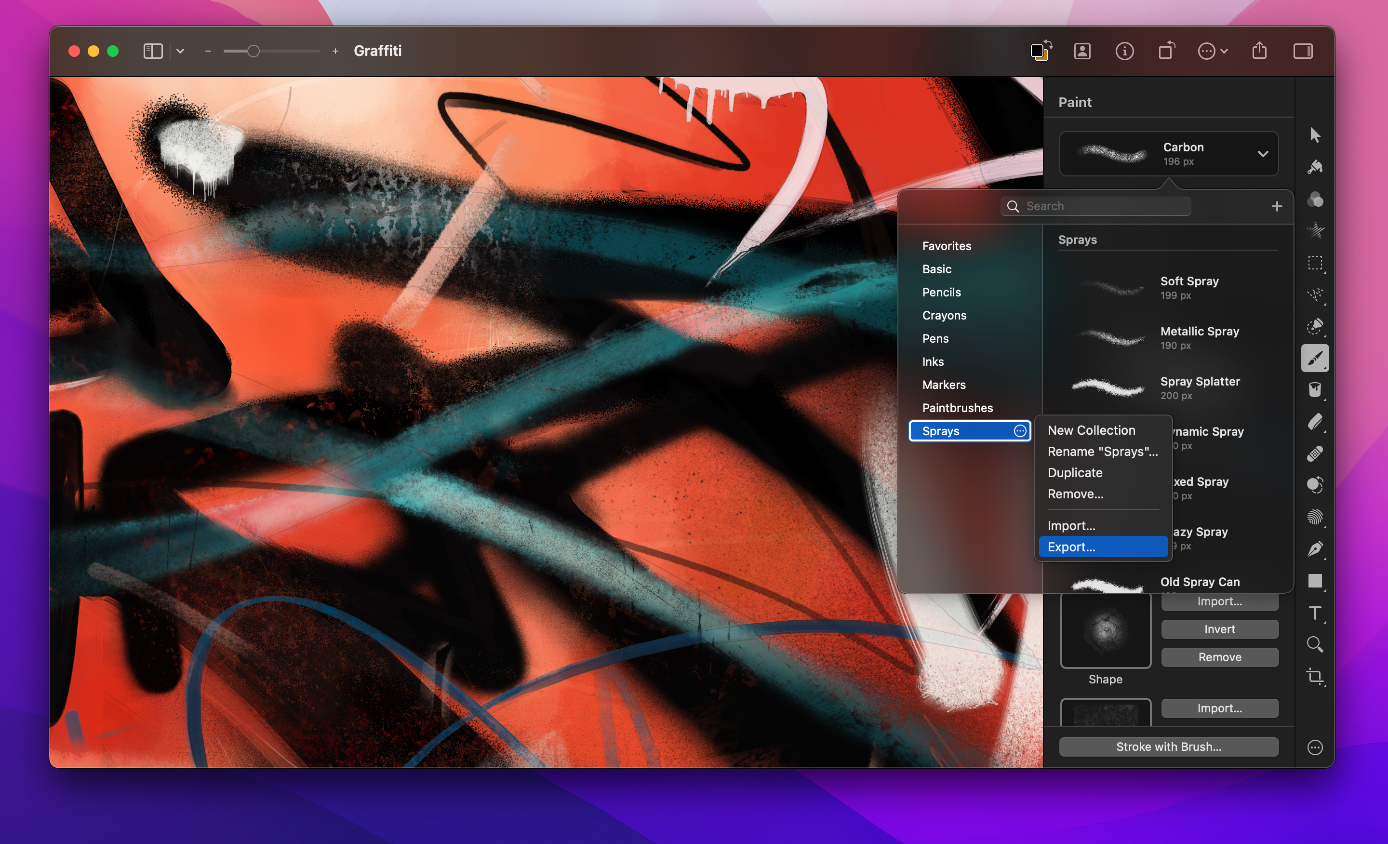
Share a Pixelmator Pro brush#
- Choose the Paint tool by doing one of the following:
- Click the Paint
 tool in the Tools sidebar or choose it from the grouped tools.
 - Choose Tools > Paint from the Tools menu at the top of your screen.
- Press the
Bkey on your keyboard.
- Click the Paint
- Click to open the Brushes browser and drag any of the brushes out of Pixelmator Pro and onto the desktop or into a Finder window.
- Send the .brushes file using the Mail app, AirDrop, or any other way you like.
Import a Pixelmator Pro brush#
- To import a Pixelmator Pro brush, double-click the .brushes file to open it or drag it onto the Pixelmator Pro icon in the Dock.
Import an Adobe Photoshop brush#
- Choose the Paint tool by doing one of the following:
- Click the Paint tool in the Tools sidebar or choose if from the grouped tools.
- Choose Tools > Paint from the Tools menu at the top of your screen.
- Press the
Bkey on your keyboard.
- Click the Paint
- Drag the brush onto the Pixelmator Pro icon in the Dock. Your brushes or brush collections will show up in a new of the Custom brushes category.