Align and space text
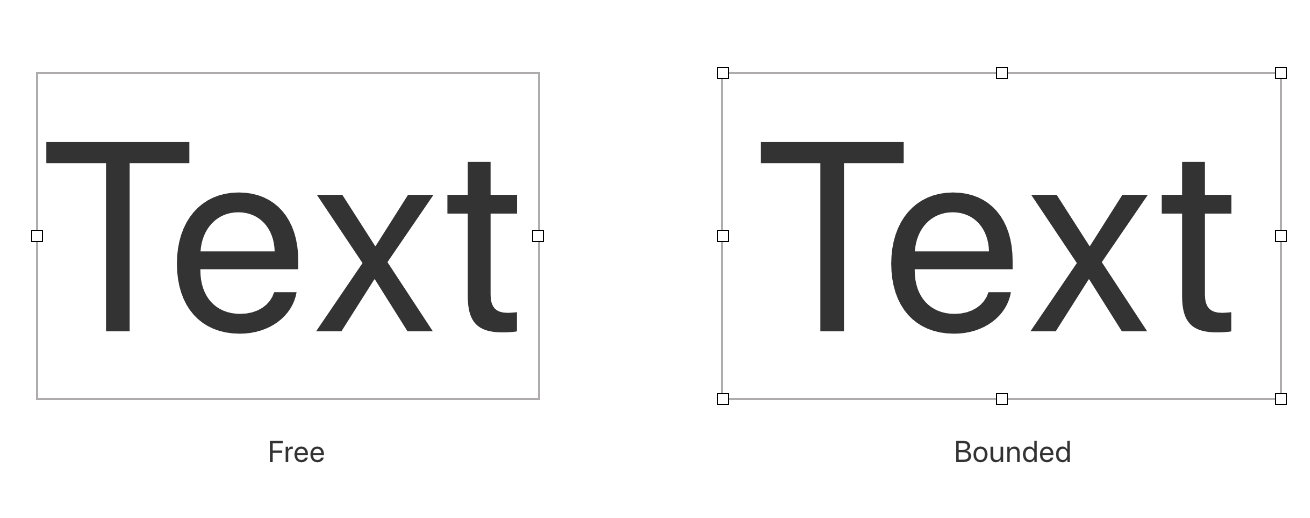
You can format text so it aligns to the left, right, center, or both sides of the text box. In a bounded text box, you can also align text vertically. The spacing options let you adjust the space between characters and lines of text.
Align and justify text horizontally#
- Choose the Type tool by doing one of the following:
- Choose the Type
 tool in the Tools sidebar.
 - Choose Tools > Type from the Tools menu at the top of your screen.
- Press the
Tkey on your keyboard.
- Choose the Type
- Click a text box to select it.
- In the Tool Options pane, choose the alignment:
- Click
 to align text to the left.
 - Click
 to center the text.
 - Click
 to align text to the right.
 - Click
 to justify on the left and right edges.
- Click
Align text vertically#
- Select a bounded text box.
- In the Tool Options pane, choose the alignment:
- Click
 to align text to the top of the text box.
 - Click
 to align text to the middle of the text box.
 - Click
 to align text to the bottom of the text box.
- Click
Adjust text spacing#
- Select the text you want to change.
To change all of the text in a text box, select the text box.
- Do any of the following:
- Adjust the text spacing space between lines: Under Spacing, enter the desired value in the Line Height field or use steppers to adjust it. You can enter a value from 0.01 to 10.0.
- Adjust the space before a paragraph: Under Spacing, enter the desired value in the Before Paragraph field or use steppers to adjust it. You can enter a value from 0 to 400 px.
- Adjust the space after a paragraph: Under Spacing, enter the desired value in the After Paragraph field or use steppers to adjust it. You can enter a value from 0 to 400 px.