Make rectangular, elliptical, or row selections
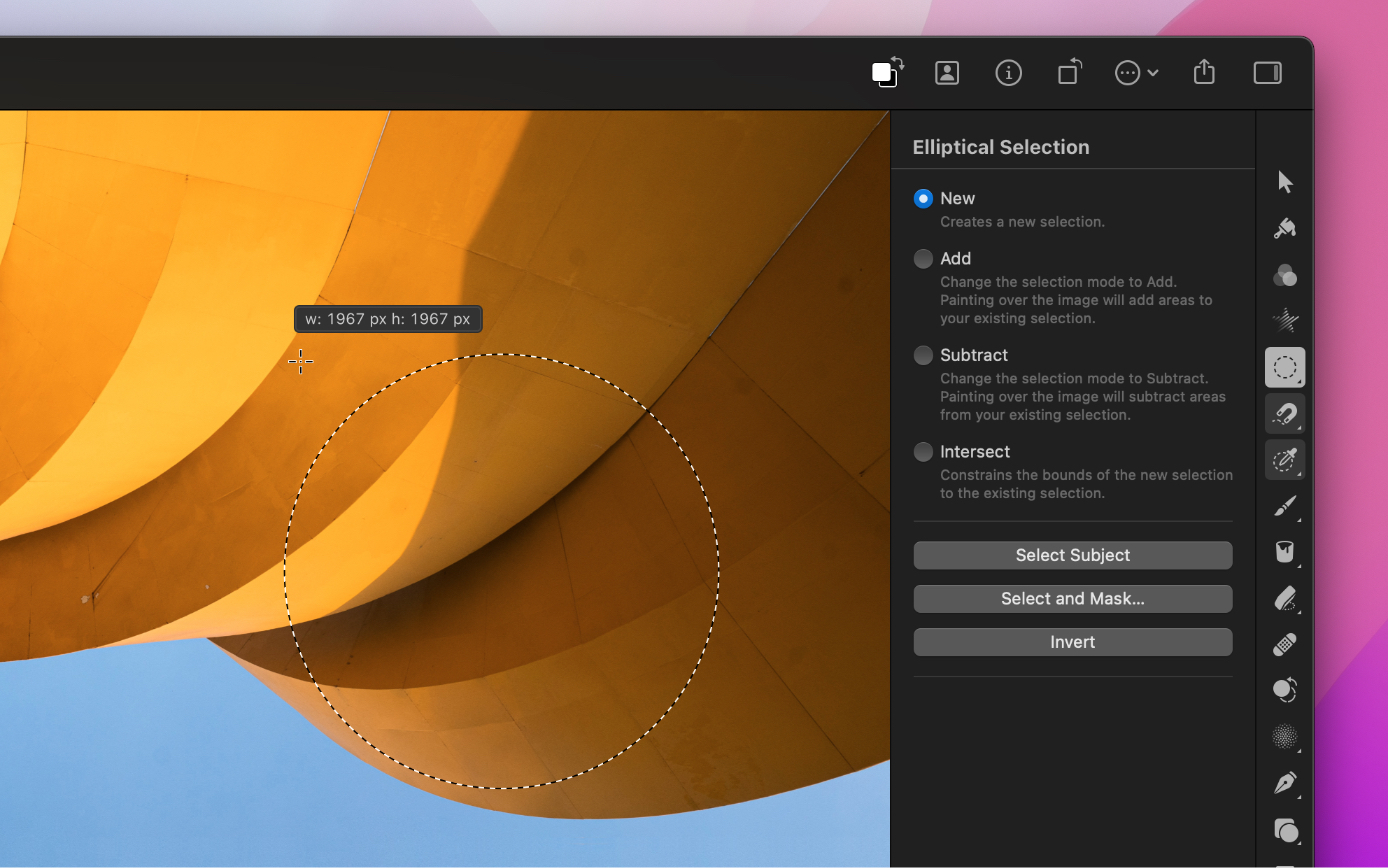
Make an elliptical selection#
The Elliptical Selection tool lets you make elliptical or circular selections in your images.
- Choose the Elliptical Selection tool by doing one of the following:
- Click Elliptical Selection
 tool in the Tools sidebar or choose it from the grouped tools.
 - Choose Tools > Select > Elliptical Selection from the Tools menu at the top of your screen.
- Press the
Ykey on your keyboard.
- Click Elliptical Selection
- Drag in your image to make the selection.
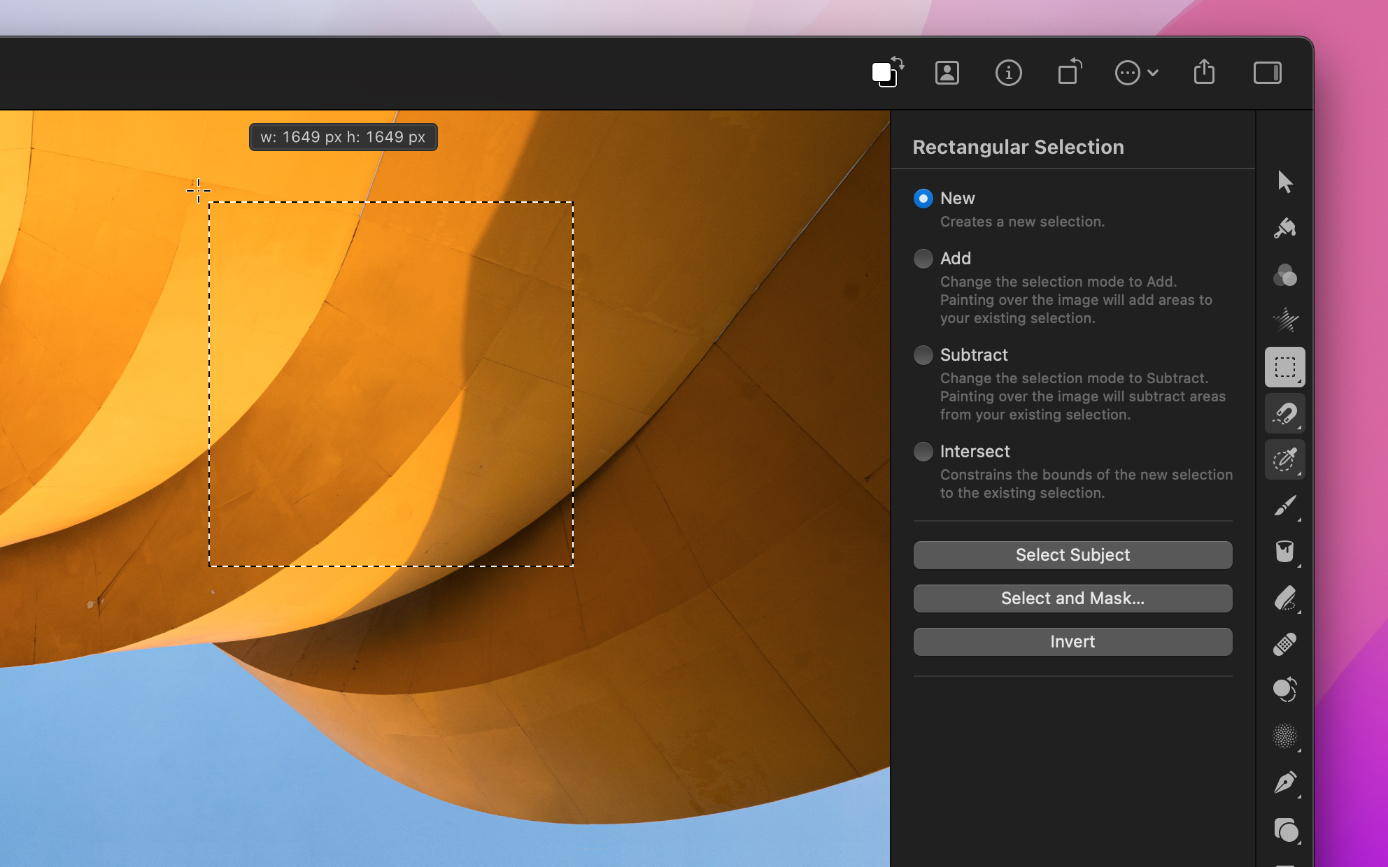
Make a rectangular selection#
Using the Rectangular Selection tool you can easily make rectangular or square selections in your images.
- Choose the Rectangular Selection tool by doing one of the following:
- Click the Rectangular Selection
 tool in the Tools sidebar or choose it from the grouped tools.
 - Choose Tools > Select > Rectangular Selection from the Tools menu at the top of your screen.
- Press the
Mkey on your keyboard.
- Click the Rectangular Selection
- Drag in your image to make the selection.
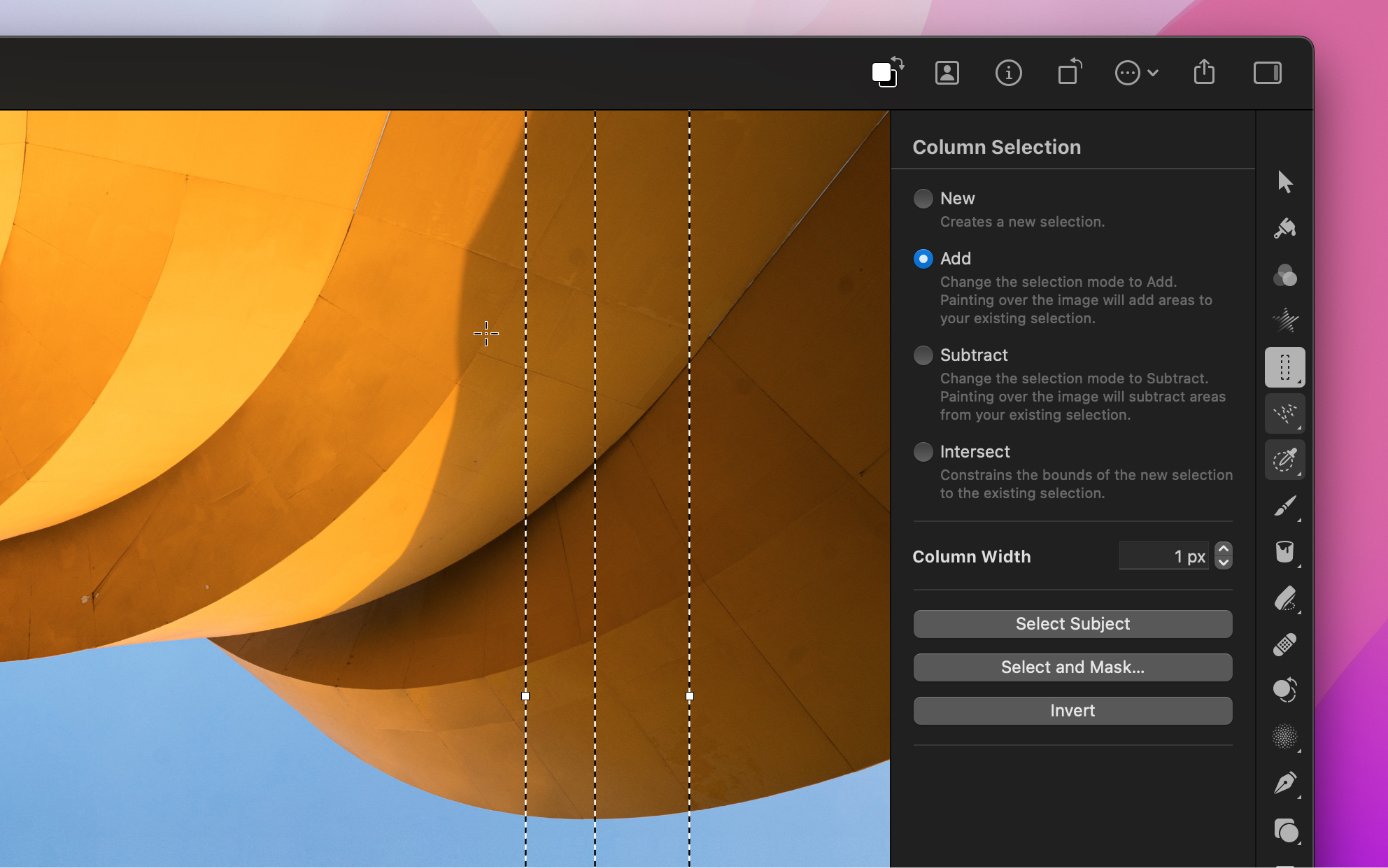
Make a column selection#
Using the Column Selection tool you can easily make vertical selections of a specified width.
- Choose the Column Selection tool by doing one of the following:
- Click Column Selection
 tool in the Tools sidebar or choose it from the grouped tools.
 - Choose Tools > Select > Column Selection from the Tools menu at the top of your screen.
- Click Column Selection
- In the Tool Options pane, enter the width of the column into the Column Width field.
- Click the image to make the selection. You can also click and drag a new selection to position it more precisely.
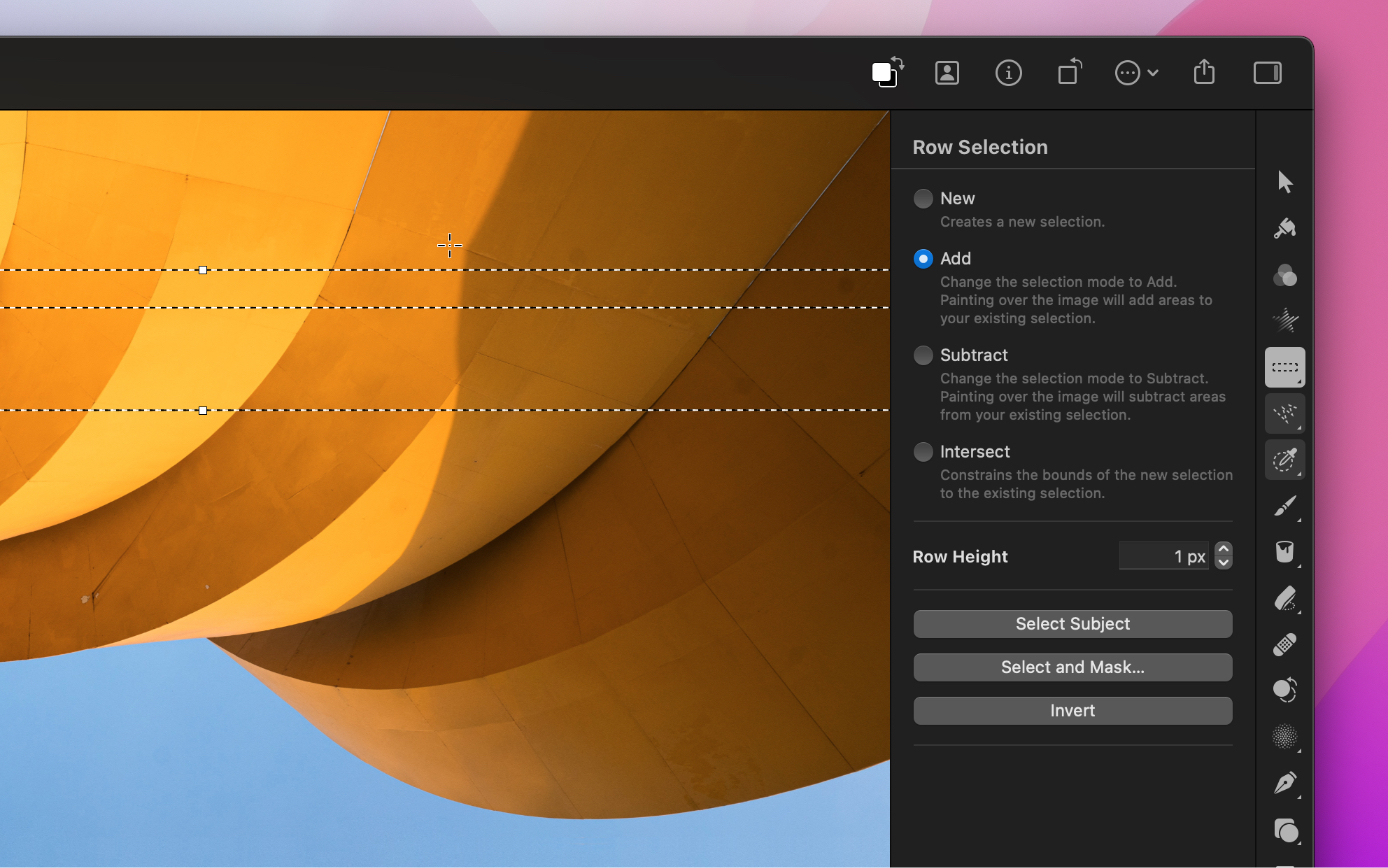
Make a row selection#
Using the Row Selection tool you can easily make horizontal selections of a specified height.
- Choose the Row Selection tool by doing one of the following:
- Click the Row Selection
 tool in the Tools sidebar or choose it from the grouped tools.
 - Choose Tools > Select > Row Selection from the Tools menu at the top of your screen.
- Click the Row Selection
- In the Tool Options pane, enter the height of the column into the Row Height field.
- Click the image to make the selection. You can also click and drag a new selection to position it more precisely.