Text style presets
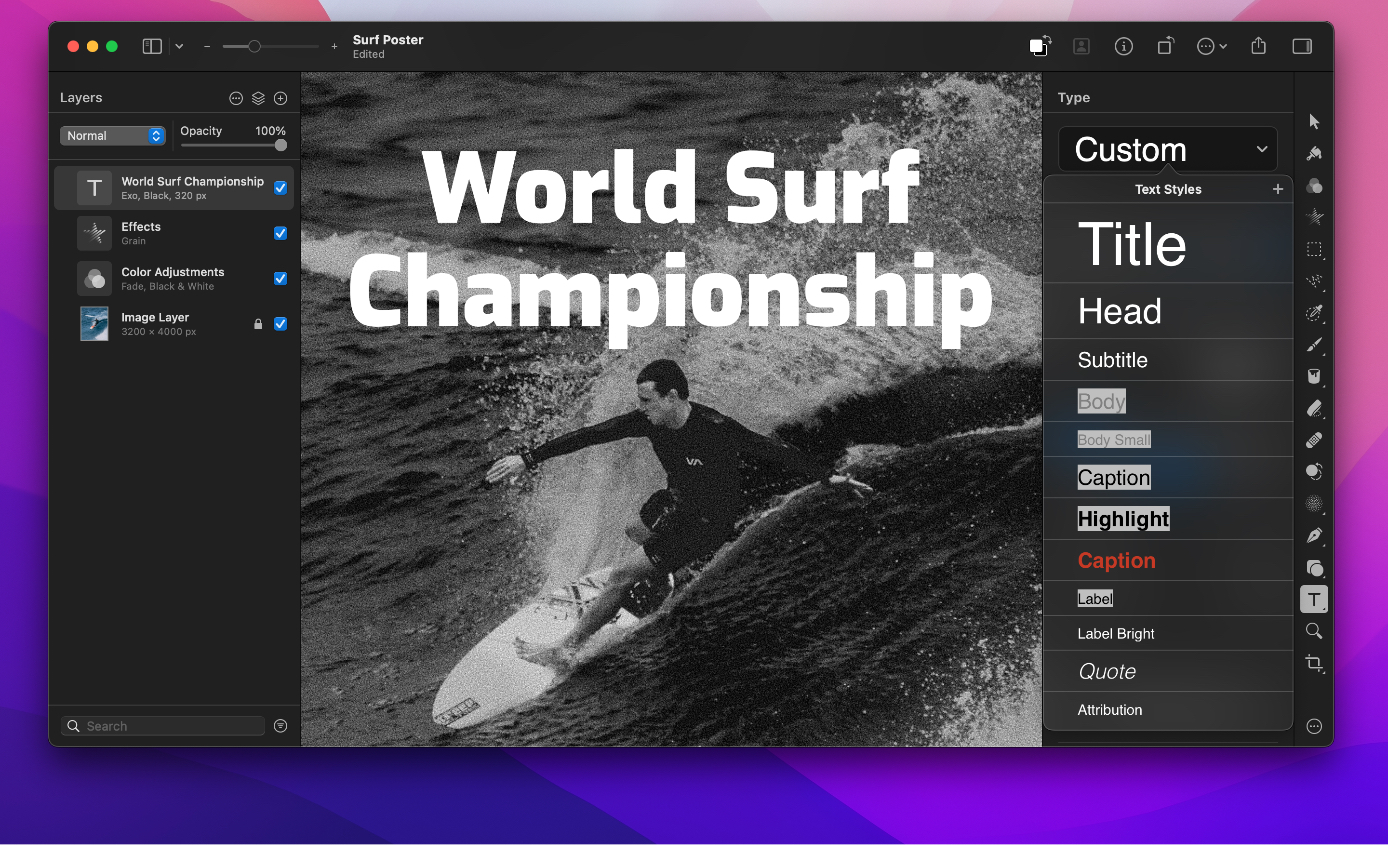
Text styles let you apply a number of text formatting options at once to instantly personalize text. Pixelmator Pro comes with a number of presets for you to choose from and you can easily create and save your own.
Apply a text style preset#
- Choose the Type tool by doing one of the following:
- Choose the Type
 tool in the Tools sidebar.
 - Choose Tools > Type from the Tools menu at the top of your screen.
- Press the
Tkey on your keyboard.
- Choose the Type
- Select the layer or layers you would like to edit.
- In the Tool Options pane, click the Text Styles pop-up menu at the top, then click a preset to apply it.
Customize text style presets#
- Choose the Type tool by doing one of the following:
- Choose the Type tool in the Tools sidebar.
- Choose Tools > Type from the Tools menu at the top of your screen.
- Press the
Tkey on your keyboard.
- Choose the Type
- Do any of the following:
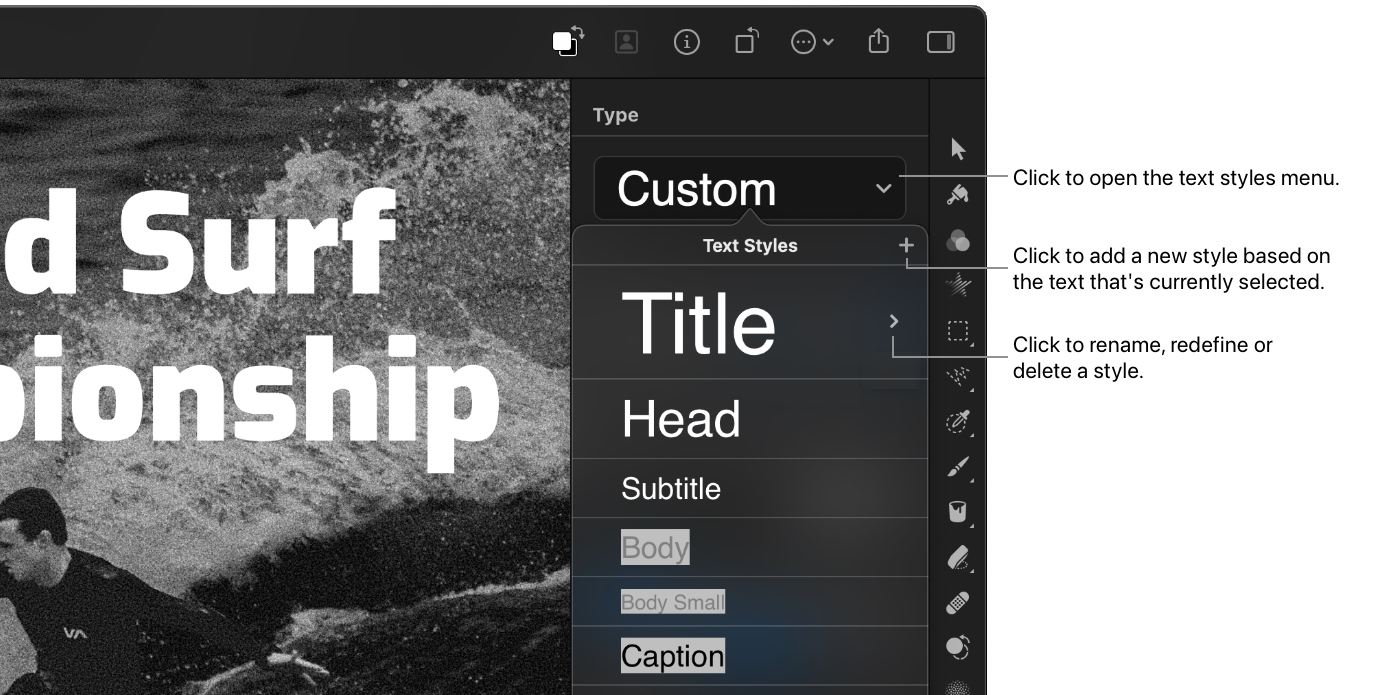
- Save a new text style preset: In the Tool Options pane, click the Text Styles pop-up menu at the top, then click Add
 to add a new style preset based on the currently selected text.
 - Redefine a text style preset: Format any selected preset as desired. In the Text Styles pop-up menu, hover over the style to redefine, then choose Redefine to update the style with the latest changes.
- Delete a text style preset: Move the pointer over the style name, then click the arrow that appears and choose Remove.
- Rename a text style preset: Move the pointer over the style name, then click the arrow that appears and choose Rename.
- Save a new text style preset: In the Tool Options pane, click the Text Styles pop-up menu at the top, then click Add