Apply sharpen effects
The Sharpen category features the Sharpen and Sharpen luminance effects.
Sharpen an image#
Sharpen effects can be applied directly to a single layer or, using an effects layer, to multiple layers in a composition.
- Select the layer or layers you want to edit.
- Do any of the following:
Apply effects to a currently selected layer:
- Click Effects
 in the Tools sidebar, then click Add Effect and select an effect from the Sharpen collection.
 - Choose Format > Effects > Sharpen and choose an effect.
- Press
Fon your keyboard, click Add Effect, and select an effect from the Sharpen collection.
Apply effects to multiple layers:
- Choose Insert > Effects from the Insert menu at the top of your screen, click Add Effect, and select an effect from the Sharpen collection.
- Click Insert a layer
 at the top of the Layers sidebar, choose Effects, click Add Effect, and select an effect from the Sharpen collection.
 - Press
Shift ⇧+Command ⌘+Fon your keyboard, click Add Effect, and select an effect from the Sharpen collection.
- Click Effects
Sharpen effect#
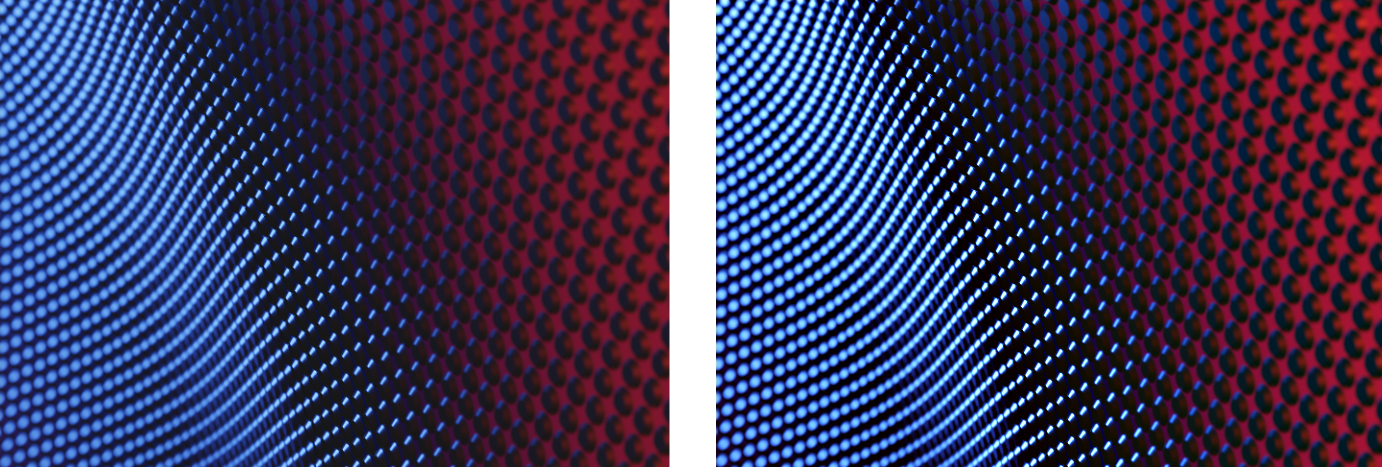
The Sharpen effect improves image detail and clarity by increasing the contrast near any edges in the image.
- Drag the Radius slider to the right to increase the strength of the sharpening effect, or to the left to decrease it. You can also enter a value from 0.0 px to 100.0 px.
- Drag the Intensity slider to the right to increase the contrast near any edge, or to the left to decrease it. You can also enter a value from 0% to 100%.
Sharpen Luminance effect#
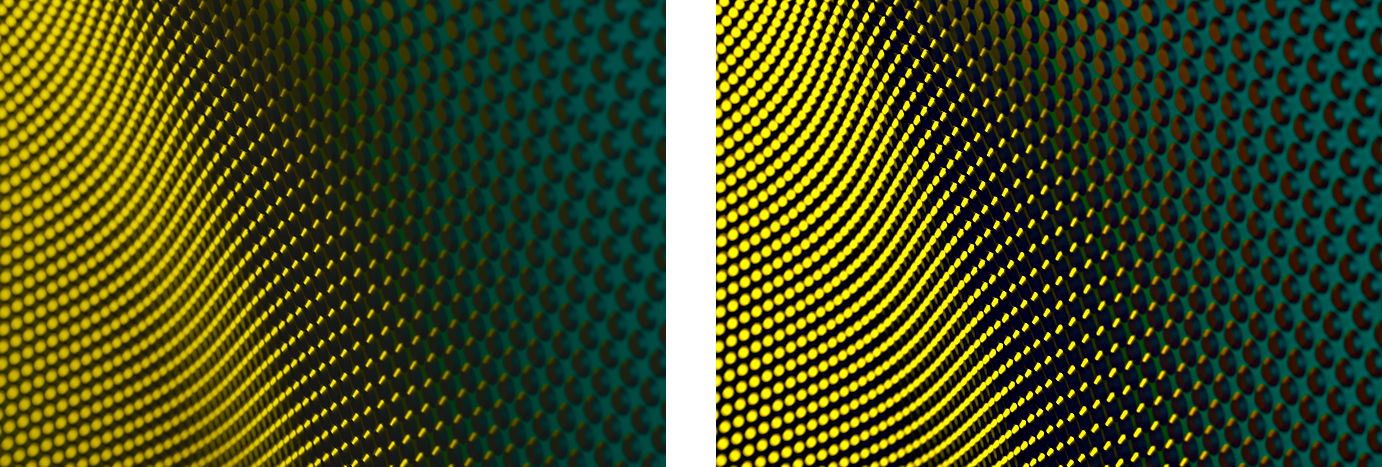
The Sharpen Luminance effect increases image detail and clarity without affecting the intensity (saturation) of the colors in the image.
- Drag the Sharpness slider to the right to increase the strength of the sharpening effect, or to the left to decrease it. You can also enter a value from 0% to 200%.
- Drag the Radius slider to the right to increase image detail near any edge, or to the left to decrease it. You can also enter a value from 0% to 2000%.
Show before and after or reset effects#
Show Original: Click the Show Original button or press Control ⌃ + M on your keyboard to see what the image looks like without any effects.
Show Split Comparison: Option ⌥ – click the Show Original button, press Control ⌃ + C on your keyboard, or force-click the canvas.
To reset all effects, click Reset at the bottom of the Tool Options pane.