Use the brushes browser
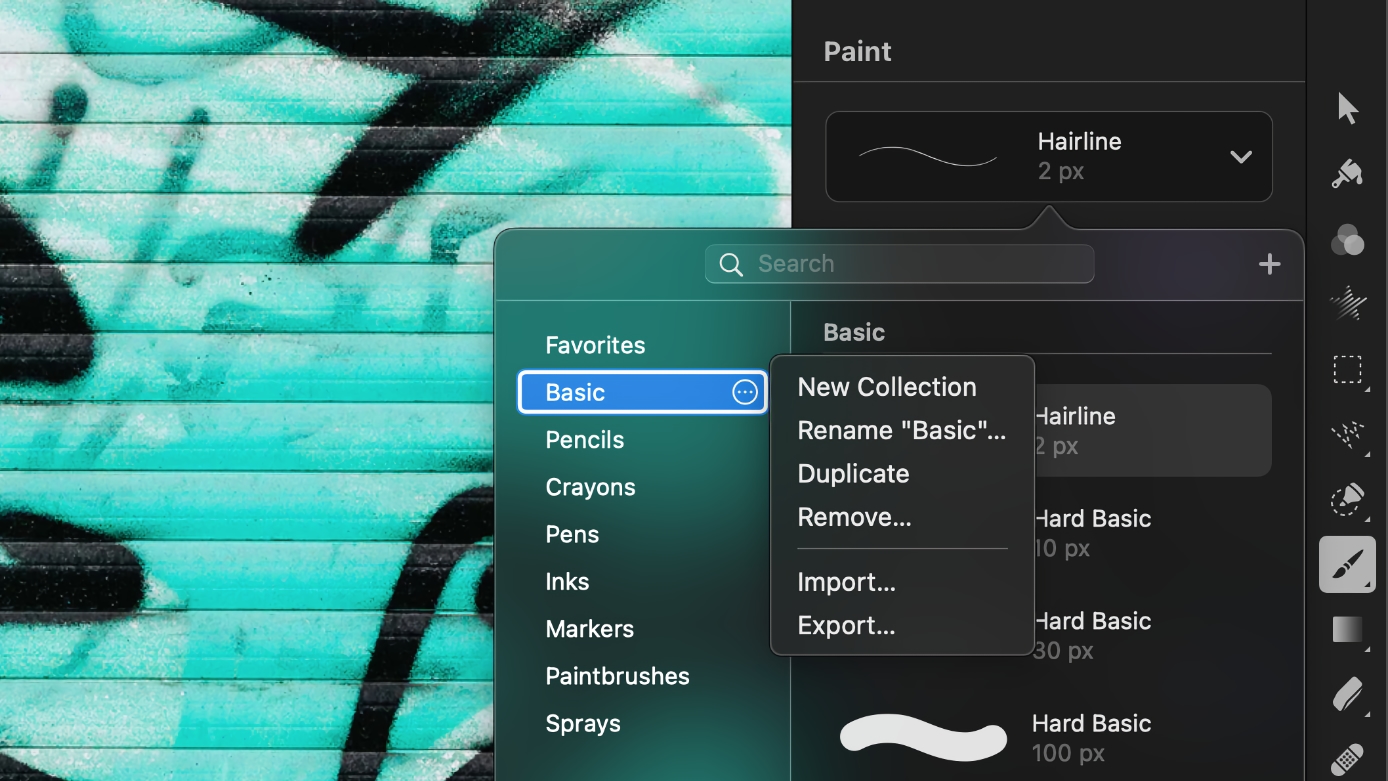
The Brushes Browser is where you find and choose brushes, create and customize brush collections, and more:
- Choose the Paint tool by doing one of the following:
- Click the Paint
 tool in the Tools sidebar or choose if from the grouped tools.
 - Choose Tools > Paint from the Tools menu at the top of your screen.
- Press the
Bkey on your keyboard.
- Click the Paint
- Open the brushes browser, then do any of the following
- Search for a brush: Use the search field at the top of the Brushes Browser to search for specific brushes by name.
- Create a new brush: Click Add
 in the top-right corner of the Brushes Browser.
 - Move or rearrange brushes: Drag and drop the brush to a new place within a collection or to any other collection in the sidebar on the left.
- Favorite, rename, duplicate, reset, or remove a brush: Hover your pointer over the brush you'd like to edit and click the arrow that appears. Then, choose an option from the menu.
- Manage brush collections: Hover your pointer over the brush collection and click More
 . You can then choose to create a new brush collection or delete a current one, rename and duplicate collections, import or export collections.
 - Rearrange brush collections: Drag and drop the brush collection to the position you want it in the collections sidebar.