Paint with the Pixel Paint tool
The Pixel Paint tool lets you paint or erase using square, pixel-shaped blocks.
- Choose the Pixel Paint tool by doing one of the following:
- Click Pixel Paint
 in the Tools sidebar or choose if from the grouped tools.
 - Choose Tools > Pixel Paint from the Tools menu at the top of your screen.
- Click Pixel Paint
- Customize the Pixel Paint tool:
- Color: Click the color well to choose a color or click
 to pick a color from the image.
 - Pixel Size: Drag the Pixel Size slider to adjust the size of the Pixel Paint tool block. Press and hold the
Option ⌥key to extend the range of the Pixel Size slider beyond 500 pixels. You can also manually enter a value from 1 px to 1000 px. - Blend Mode: Click the Blend Mode pop-up menu to choose a blend mode.
- Opacity: Drag the Opacity slider to adjust the transparency of the Pixel Paint tool.
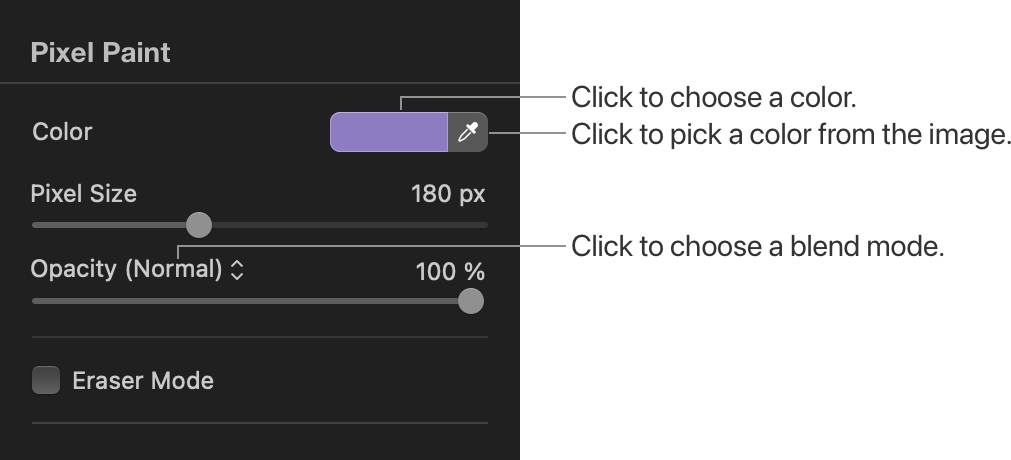
- Color: Click the color well to choose a color or click
- Drag on the canvas to paint.
Erase with the Pixel Paint tool#
- Click the Erase Mode checkbox to turn on the Pixel Eraser mode.
- Customize the Pixel Eraser tool:
- Pixel Size: Drag the Pixel Size slider to adjust the size of the Pixel Eraser tool block. Press and hold the
Option ⌥key to extend the range of the Pixel Size slider beyond 500 pixels. You can also manually enter a value from 1 px to 1000 px. - Opacity: Drag the Opacity slider to adjust the transparency of the Pixel Erase tool.
- Pixel Size: Drag the Pixel Size slider to adjust the size of the Pixel Eraser tool block. Press and hold the
- Drag on the canvas to erase.