Effect presets
Effect presets are pre-made combinations of effects that you can apply to automatically customize your selected layer with multiple effects. Pixelmator Pro comes with a number of presets for you to choose from and you can easily create and save your own.
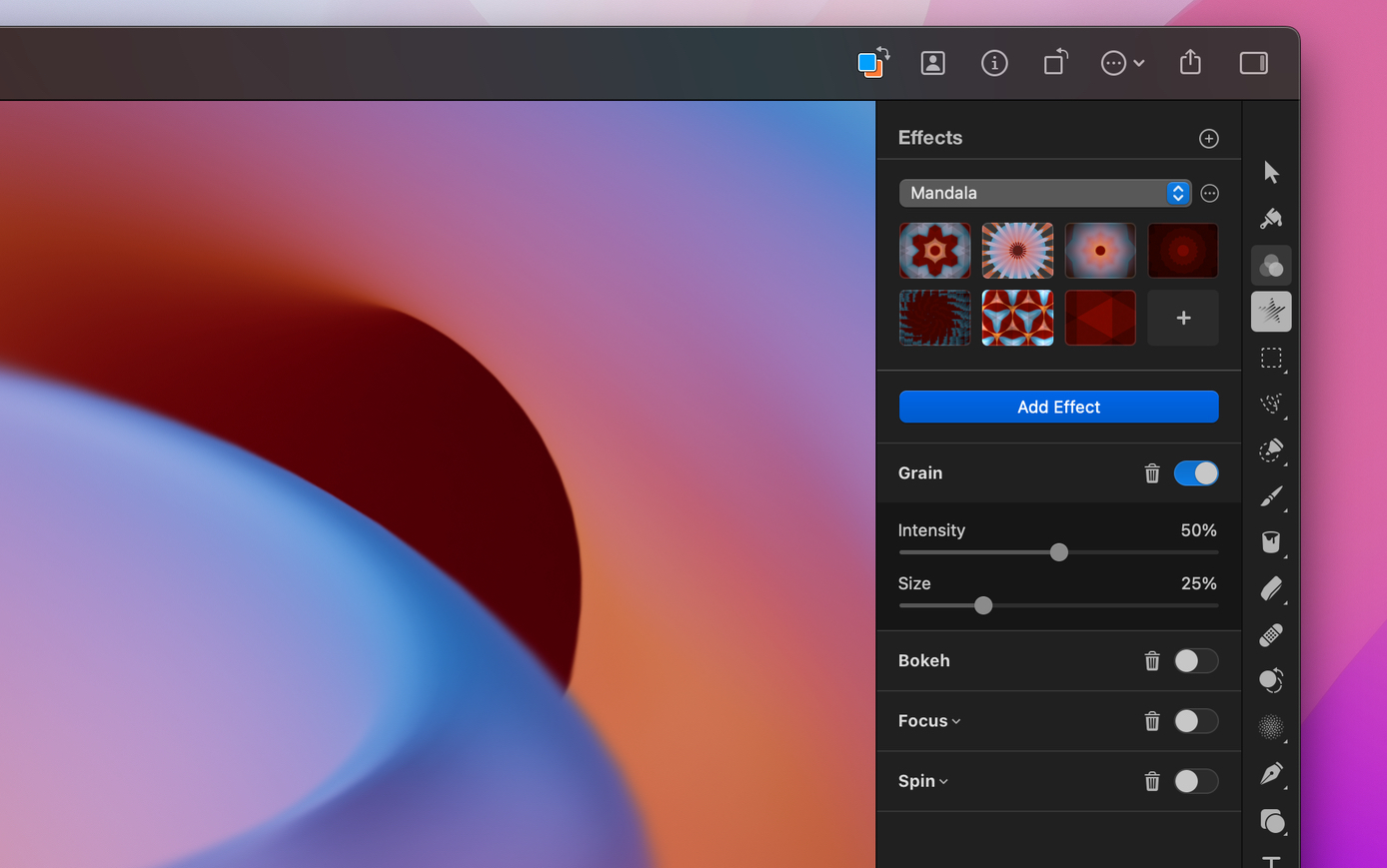
Apply an effect preset#
- Do one of the following:
- Choose the Effects
 in the Tools sidebar.
 - Choose Tools > Effects from the Tools menu at the top of your screen.
- Press the
Fkey on your keyboard.
- Choose the Effects
- Select the layer or layers you’d like to edit.
- Choose an effect preset from the presets browser at the top of the Tool Options pane or click the Collection pop-up menu to browse other preset collections.
Save a combination of effects as a preset#
With presets, you can save specific effect combinations and quickly apply them to other layers in the same or a new document.
- Choose the Effects in the Tools sidebar.
- Apply and customize any number of effects to a layer.
- Do one of the following:
- Click Add
 in any effects collection to save the preset to that collection.
 - Click More
 next to the Collection pop-up menu and choose Add Preset.
- Click Add
Create a custom effect presets collection#
- Choose the Effects in the Tools sidebar.
- Click More next to the Collection pop-up menu and choose New Collection.
Manage effect presets and preset collections#
Once you've created a preset or a preset collection, you can rename, redefine them, or share them with others.
- Choose the Effects in the Tools sidebar.
Control ⌃– click an individual preset or More next to the collection you want to manage.- Do any of the following:
- Redefine an effects preset: If you’d like to overwrite or update an existing preset with new settings, you can redefine it.
- Add an effects preset to favorites: To quickly access your favorite and most-used presets, save them to the special Favorites collection.
- Rename an effect preset or preset collection: You can give individual effect presets or preset collections distinguishable names or rename the default presets and collections that come with Pixelmator Pro.
- Remove an effect preset or preset collection: If you’ve accidentally duplicated an effect preset or would simply like to delete a preset collection you no longer use, you can remove it from the presets bar.
- Import effect presets or preset collections: In the Collections pop-up menu, choose import and browse your Mac for a .effects file to import. You can also drag and drop a preset or a preset collection to the Pixelmator Pro icon in the Dock.
- Share an effect preset: To share a preset with others or use it in Pixelmator Pro on another Mac, drag and drop a preset from the list of effect presets onto the desktop or into a Finder window, then share the .effects file with someone else via email or any other way you like.
- Share an effect presets collection: In the Collection pop-up menu, choose Export to export a single preset collection or press and hold the
Option ⌥key on your keyboard and choose Export All to export your entire presets library. - Reset all effect presets to default: Resetting all effect presets to default removes any custom presets and returns all the default presets that come with Pixelmator Pro. In the Collection pop-up menu, press and hold the
Option ⌥key on your keyboard and choose Reset All.
Show or hide the presets browser#
- Choose the Effects in the Tools sidebar.
- Drag the line that separates presets from the Add Effect button up to hide the presets, or drag it down to reveal or expand the presets section.