Convert an image to black and white with a color tint
Use the Color Monochrome adjustment to convert an image to a basic black and white while adding a color tint.
You can convert a single layer to black and white or, using a color adjustments layer, multiple layers in a composition.
Convert a currently selected layer to black and white with a color tint#
- Choose Format > Color Adjustments > Color Monochrome from the Format menu at the top of your screen.
- In the Tools sidebar, click Color Adjustments
 and turn on the Color Monochrome adjustment.
 - Press
Aon your keyboard and turn on the Color Monochrome adjustment.
Convert multiple layers in a composition to black and white with a color tint#
- Choose Insert > Color Adjustments from the Insert menu at the top of your screen and turn on the Color Monochrome adjustment in the Tool Options pane.
- Click Insert a layer
 at the top of the Layers sidebar, choose Color Adjustments, and turn on the Color Monochrome adjustment.
 - Press
Shift ⇧+Command ⌘+Aon your keyboard, and turn on the Color Monochrome adjustment.
Customize the Color Monochrome adjustment#
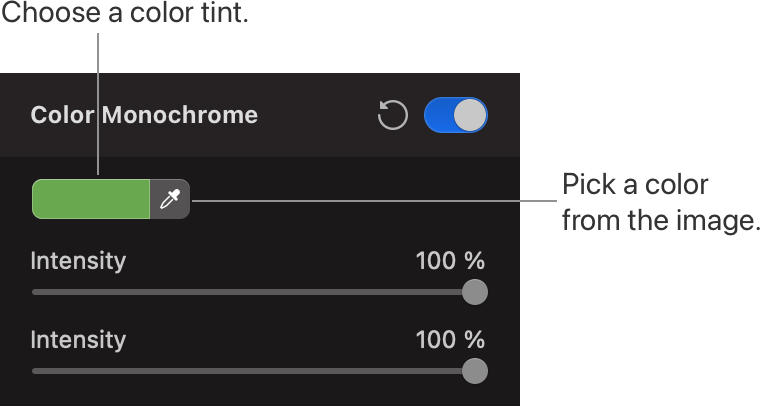
- To select the tint color, click the color well, or pick a color directly from the image using the color picker.
- Drag the Intensity slider to adjust the strength of the Color Monochrome adjustment.
Show before and after or reset adjustments#
Show Original: Click the Show Original button or press Control ⌃ + M on your keyboard to see what the image looks like without any color adjustments.
Show Split Comparison: Option ⌥ – click the Show Original button, press Control ⌃ + C on your keyboard, or force-click the canvas.
To reset all Color Adjustments, click Reset at the bottom of the Color Adjustments pane.